0/5
(0 Reviews)
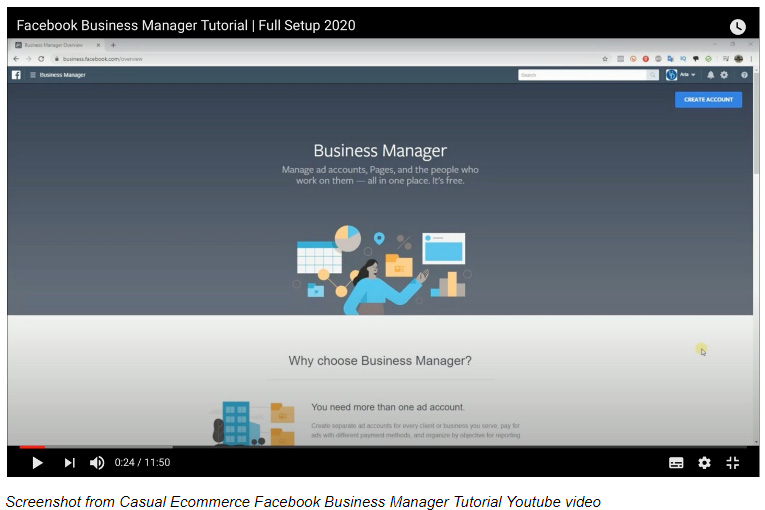

Are you finding it hard to keep up with managing and tracking pages for your business? Many business owners feel overwhelmed by the task of juggling through various platforms for different purposes, which can be both tiring and time-consuming.
Now, there’s a solution that lets you effortlessly manage and monitor all your essential marketing tools in one convenient place. Introducing Facebook’s Business Manager.
Business Manager, a complimentary tool provided by Facebook, serves as a valuable asset for business owners, marketers, and advertisers alike. Its primary function is to streamline and consolidate various marketing endeavors into a single platform. With Business Manager, users can accomplish a multitude of tasks, such as:
Digital marketing agencies widely use Business Manager, although anyone can leverage this free platform to put all their marketing tools in one centralized space.
According to Facebook, Business Manager is ideal for:
If you’re one or all of the above, read on further. We’ll break down the simple steps in setting up your own Business Manager account.
How to Create Your Facebook Business Manager
Setting up a Business Manager is easy! Below are the updated instructions for 2020 courtesy of Casual Ecommerce:
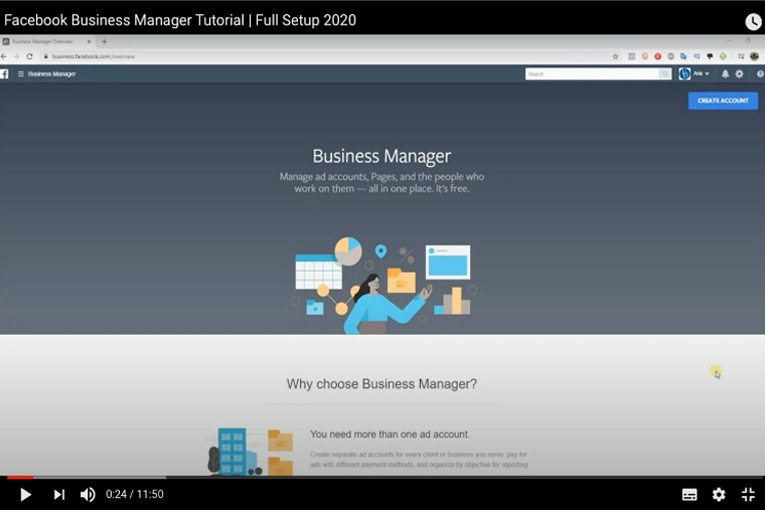
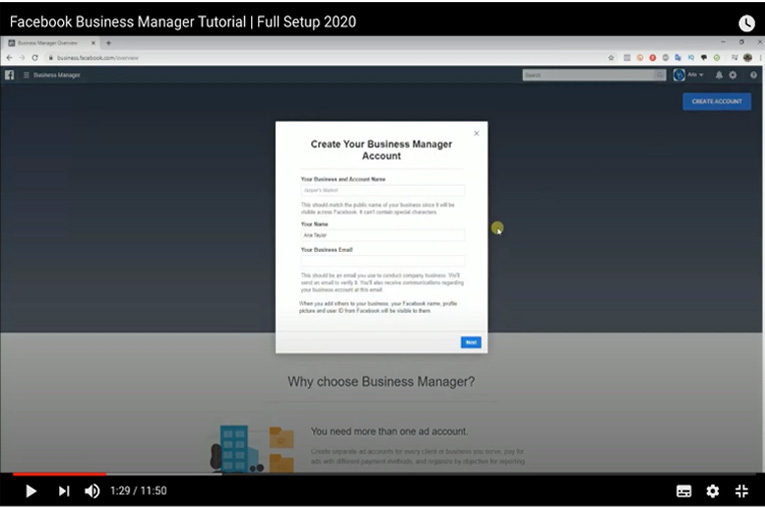
Once there, click the blue CREATE ACCOUNT button found at the top right corner of the page to create your Facebook Business Manager account.
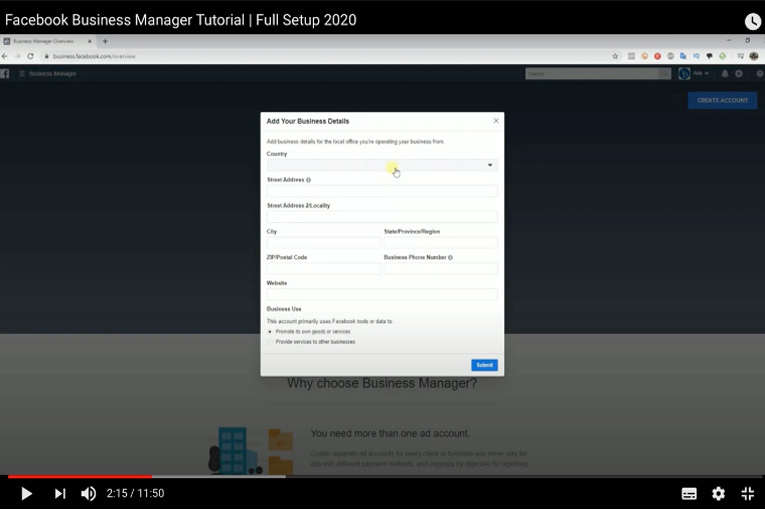
Once your account is created, you can now access your Facebook Manager dashboard.
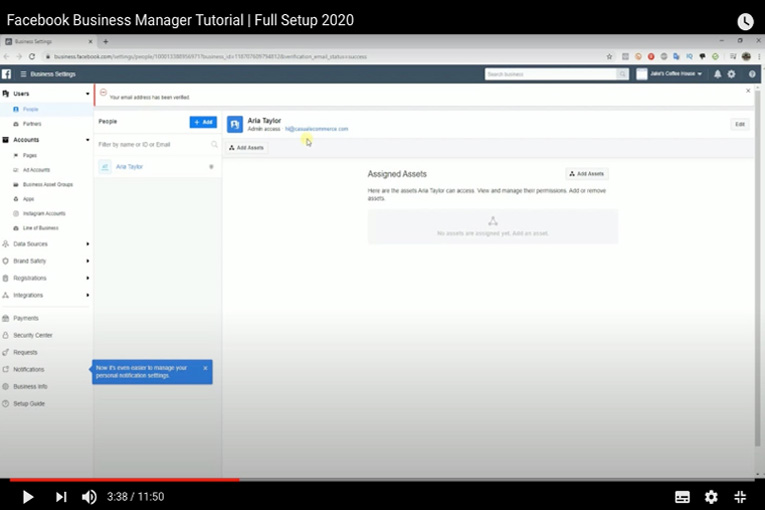
On the left-hand side of the Business Manager dashboard, you can see a list of things you can control and manage. As you get started, here are the basic yet most useful items you need to set up:
If you’ve got a moment today, why not take a seat and start working through these steps to set up your own Business Manager account? It’s a quick and simple process. In just a few minutes, you’ll be well on your way to making your social media marketing efforts more efficient.
Navigating Facebook Business Manager might feel daunting at first glance. The layout differs significantly from the familiar Facebook interface we use daily, with a plethora of buttons awaiting your click. It’s completely normal to find it overwhelming initially, but take heart – mastering its intricacies takes time.
Business Manager holds immense potential for your enterprise. It streamlines your marketing efforts, simplifying ad management and tracking. Moreover, it fosters seamless collaboration among team members. Over time, it becomes an invaluable asset, fueling your business’s growth and prosperity.
Start by familiarizing yourself with its features gradually. Experiment with the dashboard, unafraid to explore. As you grow accustomed to its functions, managing it will become second nature.
If you require assistance in setting up your Business Manager or seek a tech-savvy team to enhance your social media presence, we’re here for you. Reach out to Local SEO Search. Our mission is to empower small businesses with effective social media strategies.
Give us a call at (416) 888-8756 and share your business objectives with us. Let’s embark on this journey together.